
Best Ways to Flip and Rotate Videos Online in 2026 (Free & No Watermark)
Table of Contents
- Introduction
- Why People Need to Flip and Rotate Videos
- Understanding the Difference: Flipping vs. Rotating a Video
- How to Flip Video Horizontally or Vertically Online
- How to Rotate Video Online for Free
- One-Stop Solution: Combine Flipping and Rotating in a Single Timeline
- Why Choose VideoCutter Over Traditional Software?
- Frequently Asked Questions (FAQ)
- Conclusion
Introduction
You know the feeling. You film something great on your phone, bring it up on your laptop, and... it's sideways 🙃. Or you used the front-facing selfie cam, and now every word in the background reads backwards. The clip looks wrong and you can't post it like that.
Fixing this used to be a pain. You'd download some massive desktop editor, wait forever for it to install, and then stare at a timeline you don't understand. Or you'd try one of those "free" web tools — only to find out they stamp a giant watermark across your video unless you pay 💳.
It doesn't have to work that way. In 2026, you can flip video and rotate video online without touching a credit card or creating an account. Head to free video flip and rotate tool at VideoCutter — open it in any browser, drop in your file, and fix whatever's wrong ⚡. No watermark ever shows up on anything you export. 
Why People Need to Flip and Rotate Videos
Video orientation errors rarely happen on purpose; they are usually the result of how modern hardware and publishing platforms interact. Here are the most common reasons creators, students, and professionals constantly search for a quick orientation fix:
- The "Selfie Camera" Mirror Trap: By default, most smartphones mirror the front-facing camera during recording so the screen acts like a natural mirror. However, when the final file saves, any background text, brand logos, or t-shirt graphics appear completely backward. You must flip video horizontally to make it readable.
- Delayed Phone Orientation Sensors: When you flip your phone from portrait to landscape to capture a wide shot, the internal gyroscope sometimes lags by a split second. If you hit record too quickly, the phone tags the video metadata as vertical, resulting in an MP4 file that plays completely sideways on computers or TV screens. This requires a 90-degree rotate video fix.
- Inverted Camera Mounting: Action cameras, drones, and webcams are frequently mounted upside down due to physical constraints—such as hanging under a bicycle handlebar or a vehicle dashboard. The resulting footage needs to be flipped vertically to return the sky to the top of the frame.
- Platform Formatting Quirks: Repurposing a horizontal YouTube video into a vertical YouTube Short, TikTok, or Instagram Reel often requires a combination of rotating or mirroring adjustments to make content fit specialized mobile layouts seamlessly.
Understanding the Difference: Flipping vs. Rotating a Video
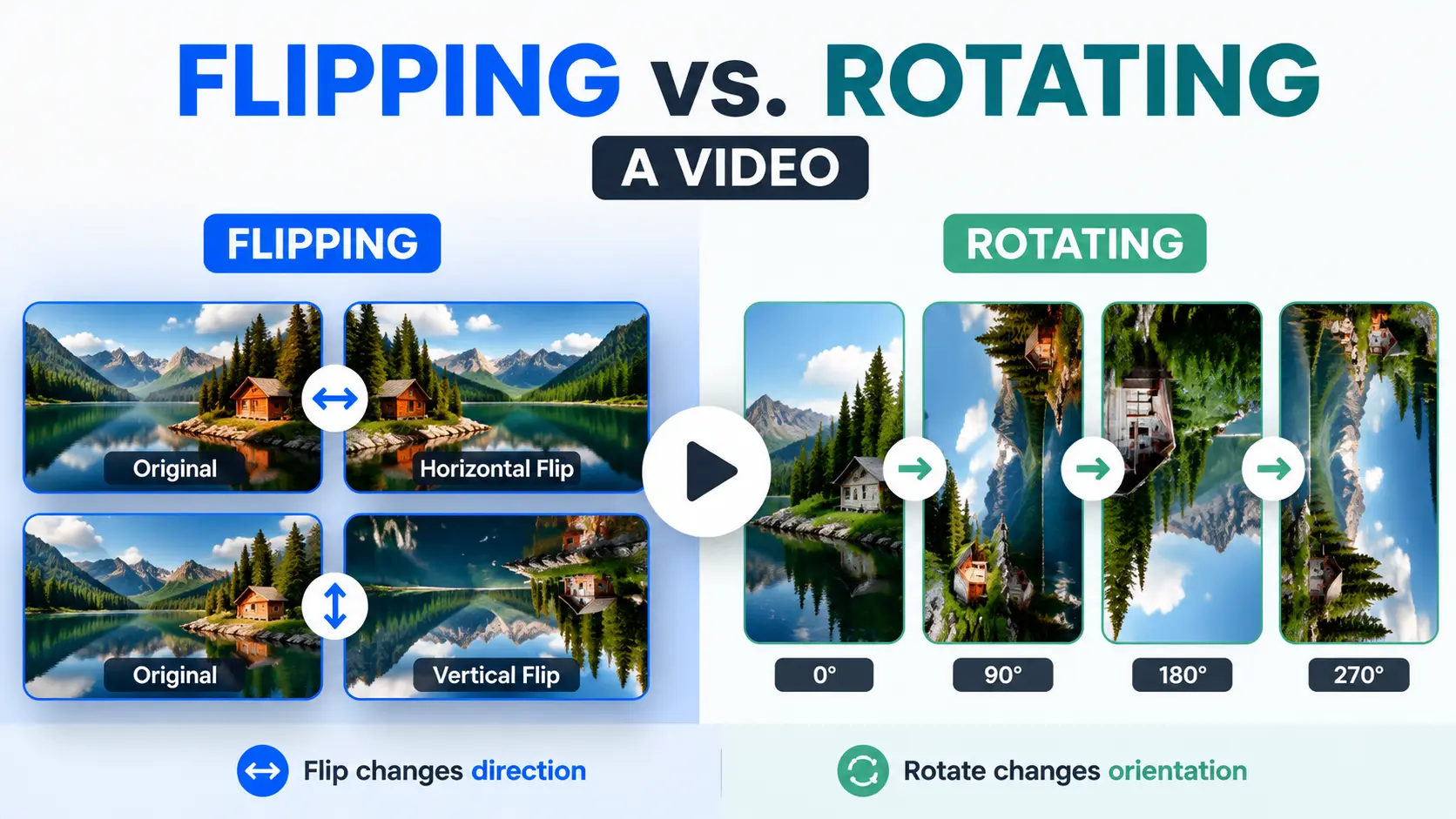
People throw these words around like they mean the same thing 🎬. They don't. Knowing which one you need saves time and keeps you from guessing.
What is Flipping a Video? (Mirroring Effect)
Flipping reflects your footage across an axis — same as looking in a mirror.
- Horizontal Flip: Swaps left and right. If your selfie video shows text backwards or your hand gestures reversed, this fixes it instantly ↔️. It's the most common flip people use.
- Vertical Flip: Turns the image upside down ↕️. Handy when you mounted a camera wrong — like under a bike handlebar or a drone wing — and the sky ended up at the bottom of the frame.
When you flip video, you're just repositioning pixels. The file doesn't get re-encoded in a lossy way, so the quality stays the same as your original. Same principle applies when you rotate video — it's a geometric adjustment, not a compression pass. 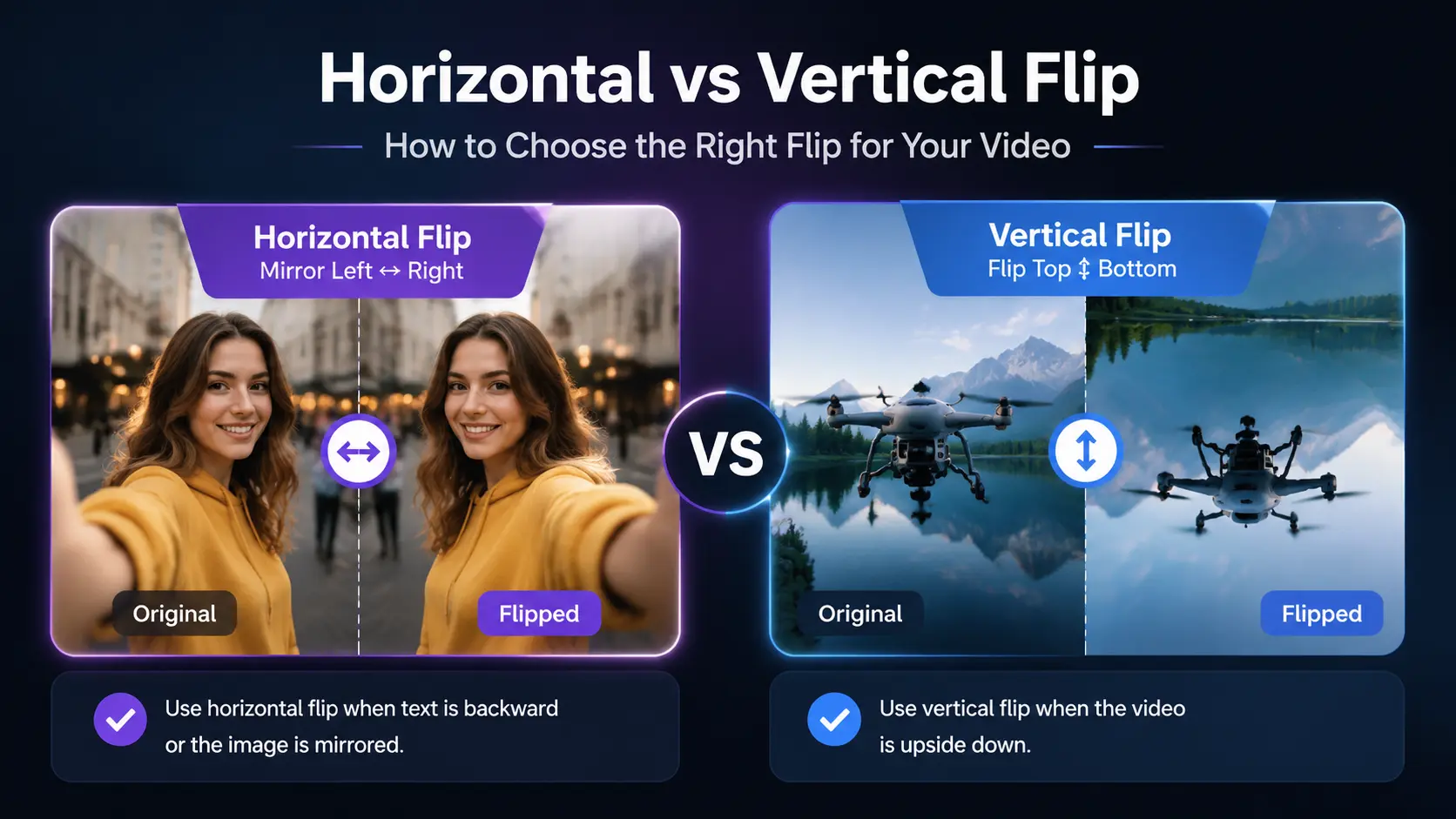
What is Rotating a Video?
Rotating turns the whole frame by a fixed angle 🔄. Usually 90°, 180°, or 270°.
Shot a portrait video but your phone saved it as landscape? That's a rotate video fix. A 90° turn clockwise or counter-clockwise brings it upright. If your clip is fully inverted, 180° does the job.
Rule of thumb: Text backwards → flip it. Whole frame sideways → rotate it.
How to Flip Video Horizontally or Vertically Online
If your footage looks mirror-reversed, use the flip video online tool. Three steps, all in your browser:
Step 1: Upload Your Video File
Open the page in any browser. You'll see a drop zone — drag your file in or click to browse 📤. MP4, AVI, MOV, MKV, WebM all work. File size limit is 500 MB, which covers most phone and webcam clips. Nothing to convert ahead of time. 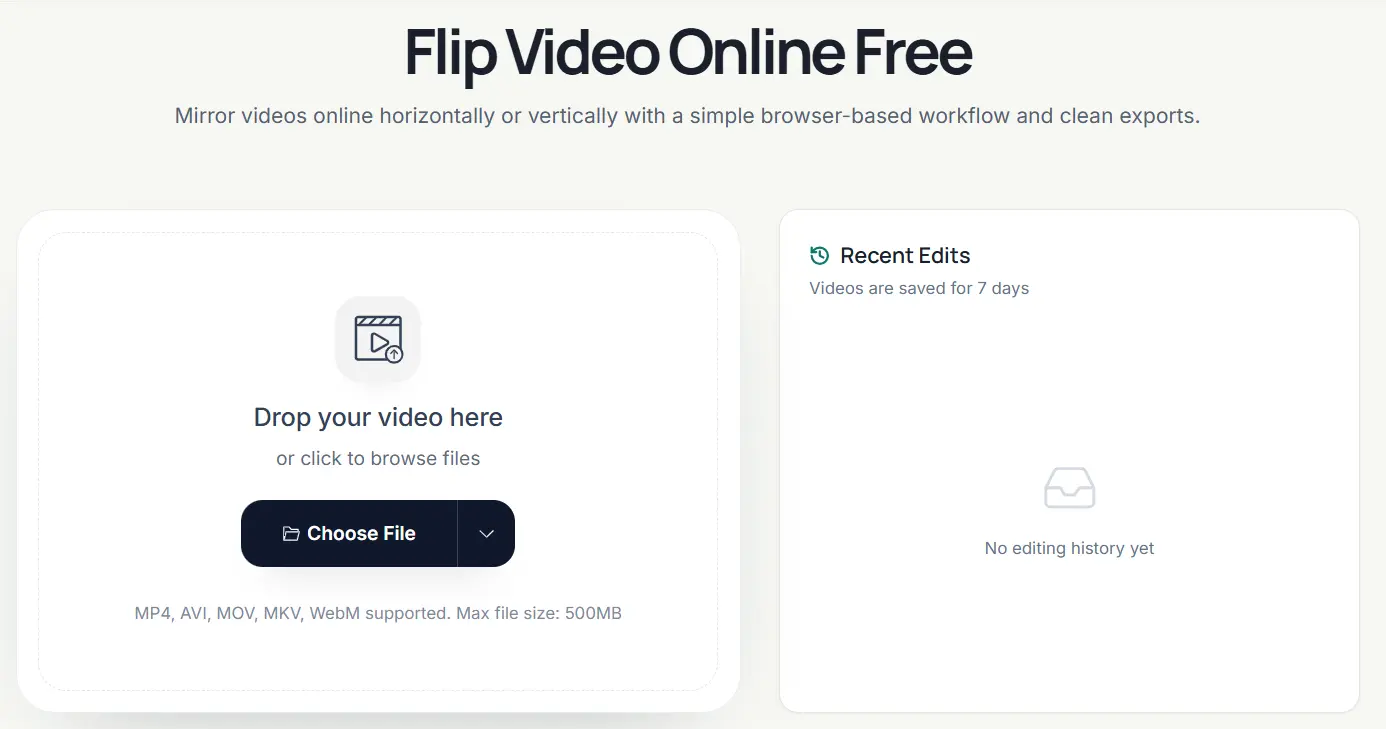
Step 2: Choose Your Flip Direction
Your clip loads into a preview player with controls right below it. You have everything you need to flip video right there 📖.
- Hit Flip Horizontally to mirror the image left-right. If you need to flip horizontal video online, this gives you natural-looking results right away.
- Hit Flip Vertically if the camera recorded upside down.
The preview updates live. What you see is exactly what downloads. 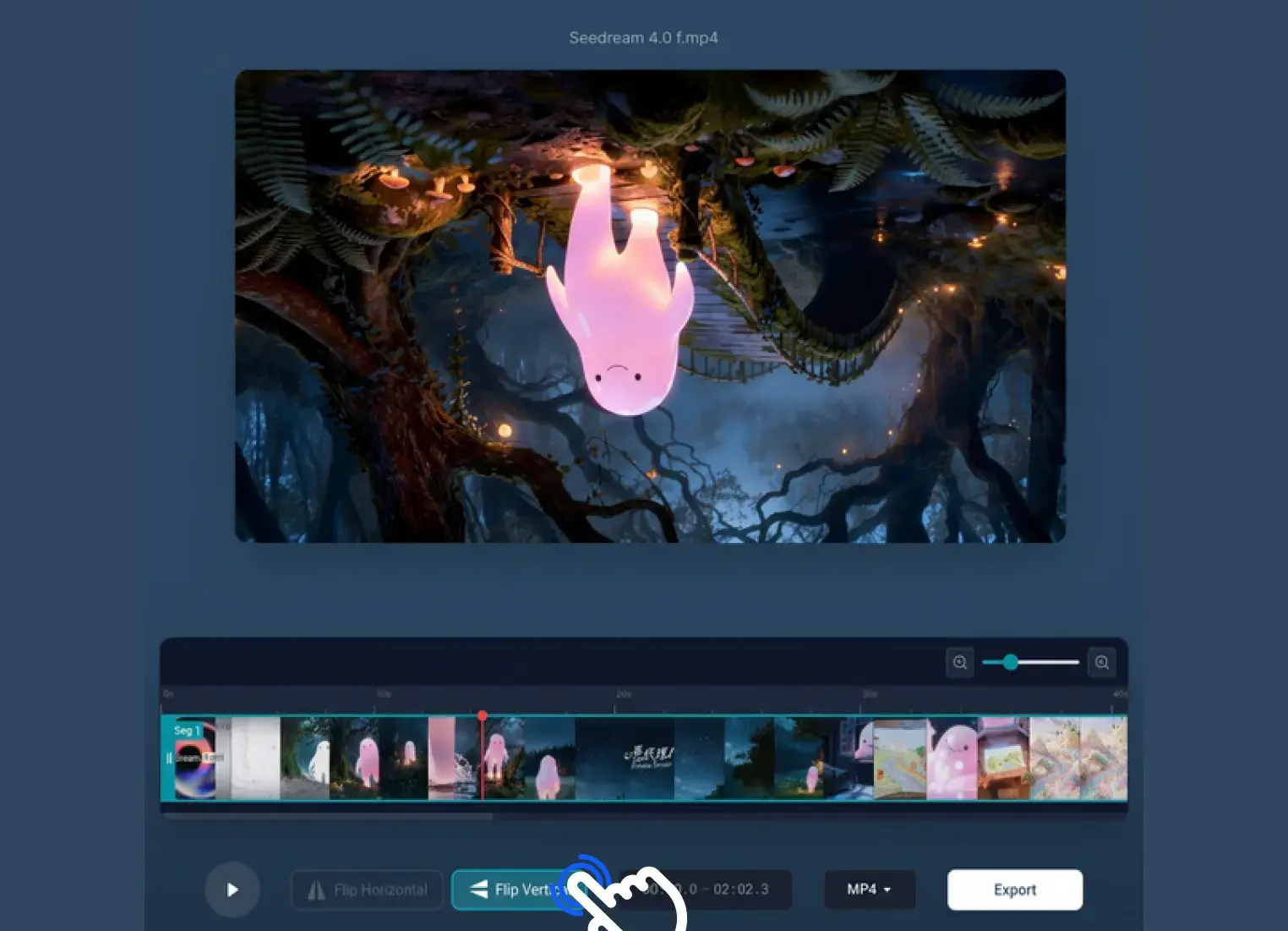
Step 3: Export and Download Your Clean Video
Looks good? Pick your output format from the dropdown (MP4, MOV, or MKV) and hit Export ✅. Your video processes and a download link pops up. No watermark anywhere. 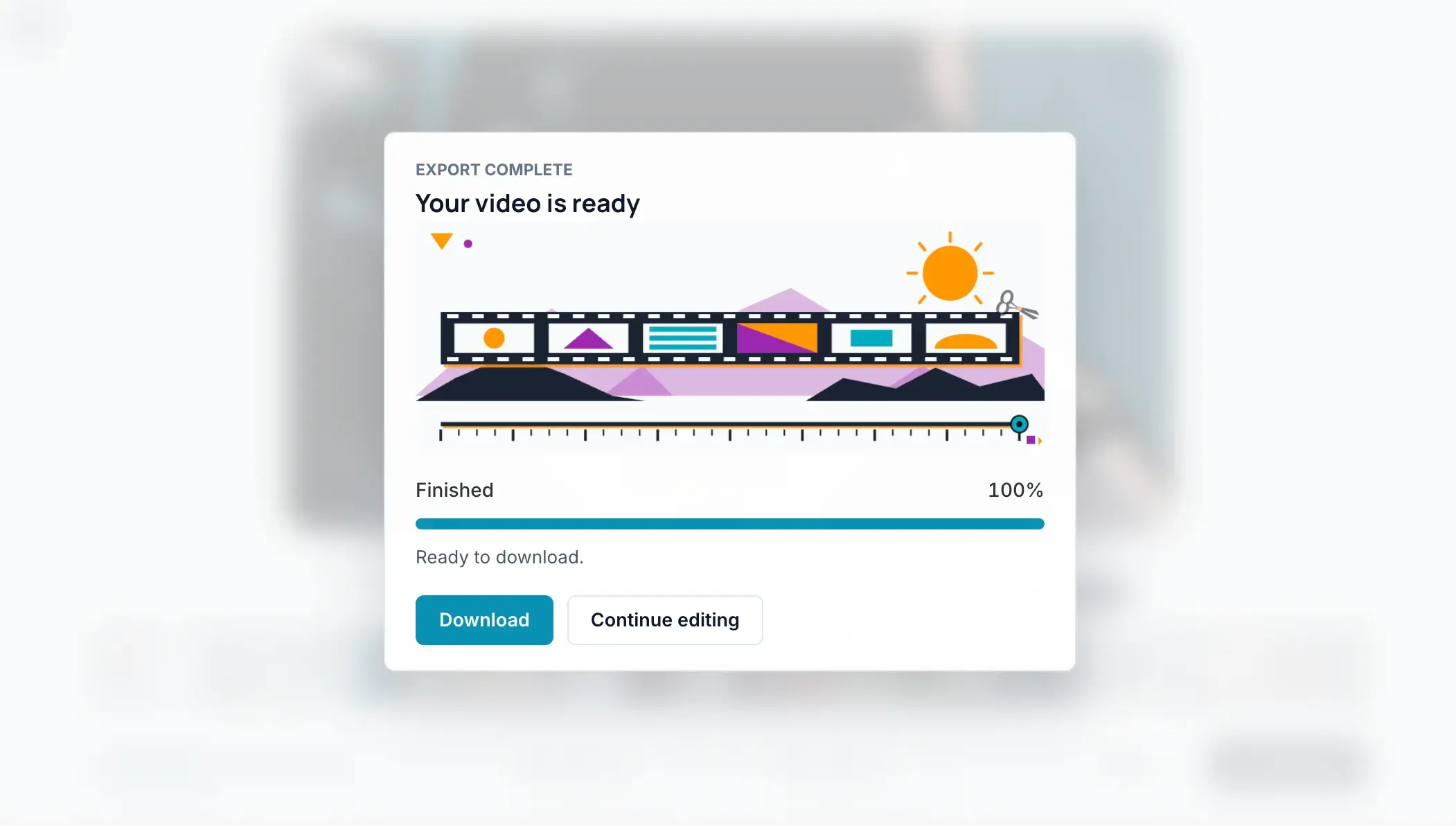
How to Rotate Video Online for Free
If your recording saved landscape instead of portrait, or your entire frame plays upside down, you can rotate MP4 video free using our streamlined browser layout. Follow these exact steps to correct your footage instantly:
Step 1: Upload Your Sideways Clip
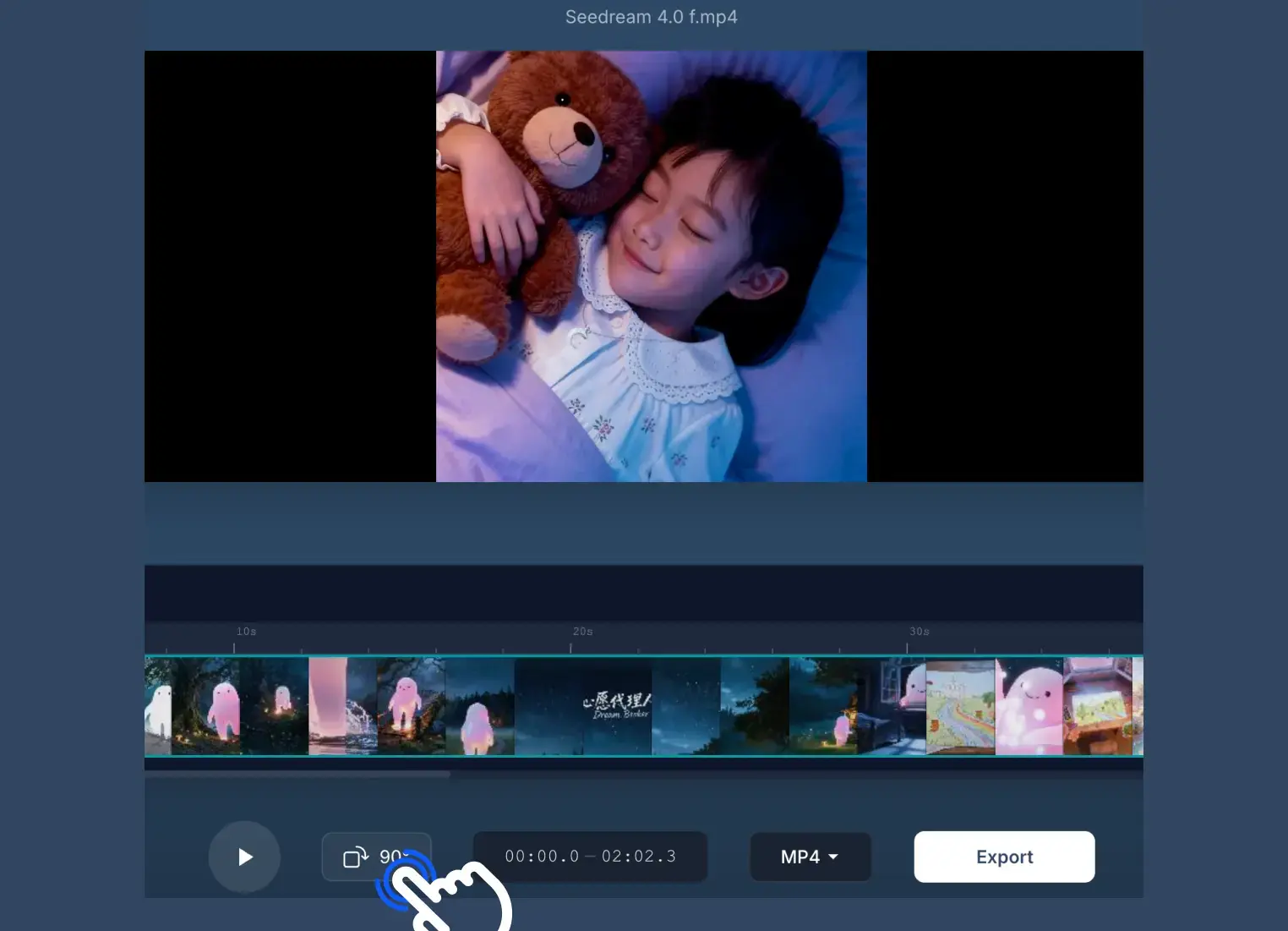
Navigate to the online video rotator workspace in any web browser. Click the primary action area to select your file, or simply drag and drop your sideways footage directly into the interface. The tool processes standard mobile formats instantly.
Step 2: Apply Rotation Adjustments
Once your video renders in the central preview frame, locate the intuitive orientation control tools positioned below or alongside your timeline player:
- Click Rotate Clockwise (90°) if your portrait smartphone footage is laying horizontally on its left side.
- Click Rotate Counter-Clockwise (270°) to correct clips tilted sideways onto their right side.
- Keep clicking the tool to cycle through adjustments if your footage requires a complete 180° inverted correction. The responsive preview updates live so you can verify that human faces, horizonal fields, and titles are correctly oriented.
Step 3: Render and Save Without Watermarks
After aligning your frame perfectly upright, choose your desired container format (such as MP4 or MOV) from the output settings menu. Click the Export action button. The web app finishes compiling your video adjustments without running a lossy compression pass, delivering a high-quality, watermark-free file link for download in seconds. 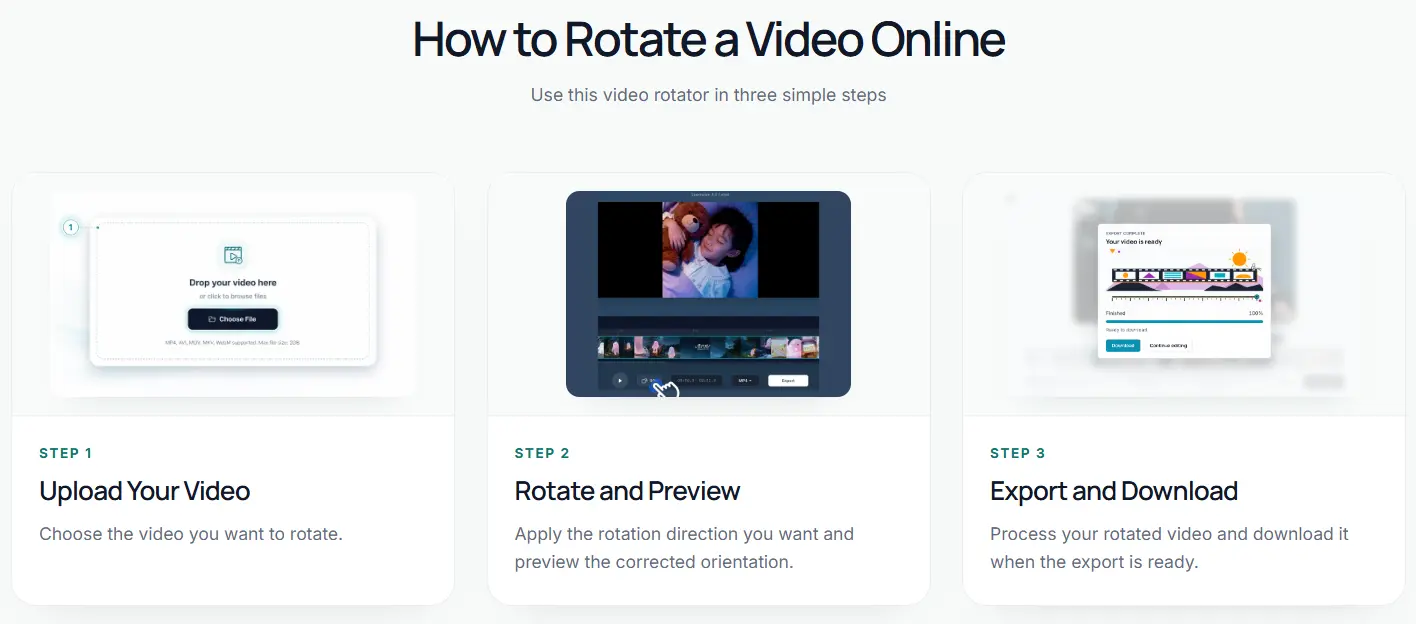
One-Stop Solution: Combine Flipping and Rotating in a Single Timeline
Most free web tools have a dumb limitation: you can flip OR rotate, but not both in one session. If your video is sideways AND mirrored? You're stuck uploading it twice — once to rotate, once to flip. By the time you're done, the re-encoding has already hurt your quality 📉.
VideoCutter doesn't work like that. The top-left toolbar puts crop, horizontal flip video, vertical flip video, and rotate video controls all in one interface 🎞️. You can rotate mp4 video free by 90° and then hit the flip button right next to it — one upload, one preview, one export.
No bouncing between tools. No compressed-then-compressed quality loss. One session, clean output. 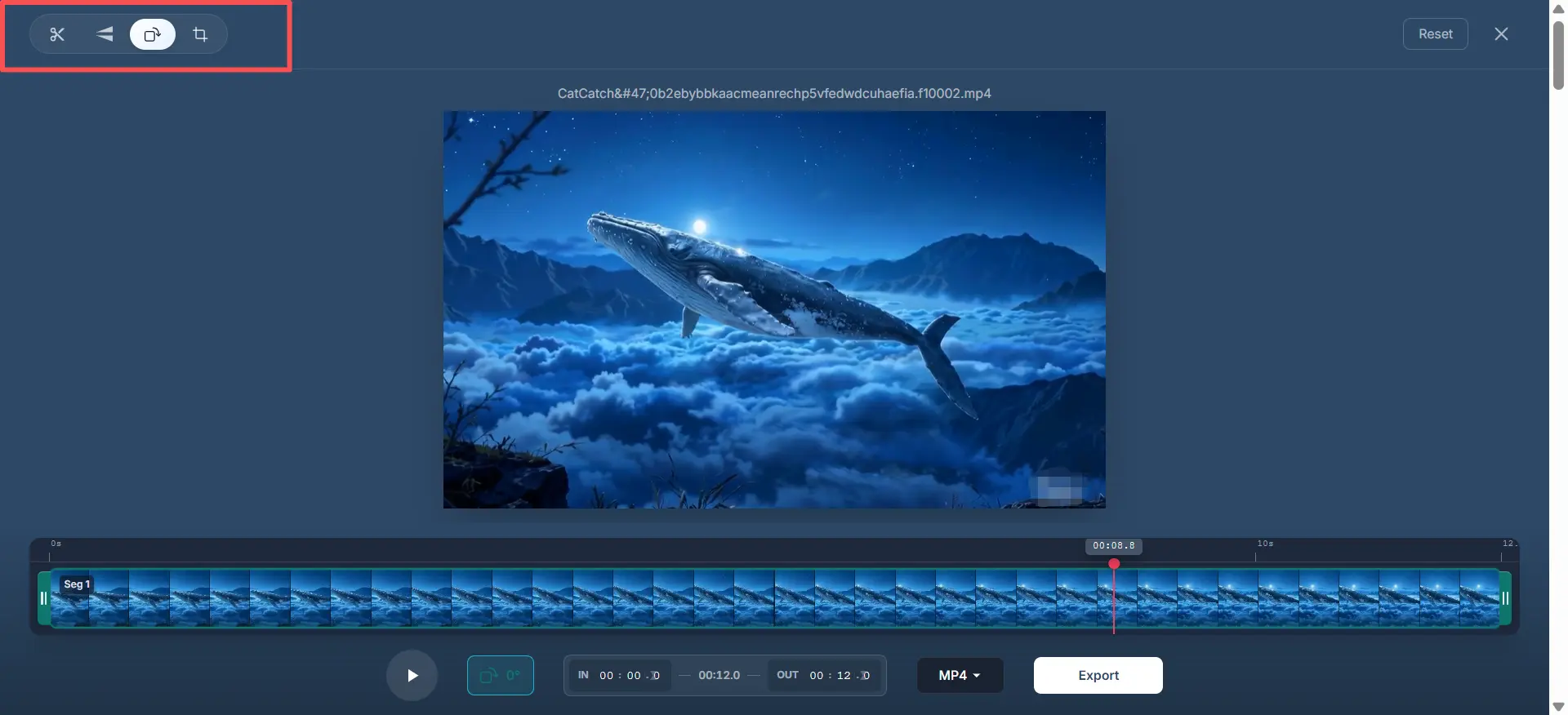
Why Choose Video Cutter Over Traditional Software?
| Feature | VideoCutter | Desktop Apps | Other Free Web Tools |
|---|---|---|---|
| Watermark | None, ever | Only in paid versions | Giant logo unless you pay |
| Account needed | No | Yes, and often a subscription | Email signup required |
| Resource drain | Nothing local (browser-based) | Heavy RAM and CPU usage | Slow, throttled speeds |
| Flip + Rotate at once | Yes, same screen | Hidden in separate menus | Usually only one or the other |
| Formats | MP4, MOV, AVI, MKV, WebM | Needs plugin setup | Often MP4 only |
| Export speed | Under a minute | Depends on your hardware | Often slow, throttled |
Frequently Asked Questions (FAQ)
How do I rotate a video on iPhone without installing third-party apps?
Open Safari on your iPhone, go to VideoCutter.io, pick a clip from your camera roll, and rotate it right in the browser 📱. No App Store download, no extra permissions to grant. If you've been searching how do i rotate a video on iphone and hoping for something that doesn't require an install — this is it.
Can I flip just a specific part of a video in Video Cutter, rather than the entire clip?
Yes! Our tool is completely all-in-one—cutting, flipping, and rotating are seamlessly integrated into a single timeline. You can split your video, isolate the part you want, and flip or rotate that specific segment right then and there. No need to switch between different tools! 🎞️.
Is it safe to upload my private or sensitive videos to an online editor?
We treat privacy seriously 🔒. All transfers happen over encrypted SSL connections. Your files sit on private servers only while your edits process — nothing gets shared, scraped, or sold.
Conclusion
Orientation fixes shouldn't be complicated. Whether you need to flip video to fix mirrored selfie text, or rotate video to straighten out a sideways phone clip — you can do it all from your browser at VideoCutter 🚀.
No watermark. No signup. No credit card anywhere in sight. Just open the page, drop in your file, fix what needs fixing with a flip video or rotate video adjustment, and download. If you've been burned by "free" tools that hit you with a paywall at the last step, give this a try — it actually works the way you'd expect 💯.