
How to Cut a Video Online for Free (100% Private & No Server Upload)
Introduction: Why Cutting Your Video Should Be Fast, Easy, and Above All, Private
Have you ever recorded a video and realized there’s a part that just didn't turn out right? Maybe there’s an awkward pause in the middle of a speech, a messy setup at the start of a vlog, or perhaps your video is simply too long for Instagram’s limits. You want to send a quick, polished clip to a friend or colleague, but the file is too big, and the process feels overwhelming.
As a beginner, you just want a simple tool to get the job done. However, in 2026, a simple task like "cutting a video online" has become a hidden risk.
The Hidden Conflict of Cloud Editing
Most popular online video cutters require you to upload your files to their servers before you can even move a slider. In an era where AI models are constantly scraping cloud data for training, and data breaches are a weekly headline, your private memories, family clips, and confidential work presentations shouldn't be "cloud-processed" on a stranger's hardware. Beyond the privacy risk, uploading massive 4K files on a slow connection can turn a 10-second trim into a 20-minute ordeal.
The Solution: Privacy-First Technology
That’s why we built Video Cutter. Our tool leverages cutting-edge WebAssembly (WASM) technology to handle the heavy lifting directly within your browser. Unlike traditional sites, we don't "receive" your video; your device processes it locally. This means you get lightning-fast speed with the zero-install ease of a website.
The most important part? Your video never leaves your device. ---

Why Cutting a Video Feels Hard for Beginners
Before we dive into the "how-to," let’s look at why many people give up before they even start:
- Software Overload: Professional editors look like airplane cockpits. Too many tracks, layers, and buttons can be paralyzing.
- Terminology Confusion: People often mix up "trimming," "cutting," and "splitting," leading to accidental deletions.
- Installation Barriers: You might be on a school or work computer where downloading software is blocked.
In 2026, a browser-based tool video cutter is the fastest and simplest solution—provided it respects your data.

Cloud Processing vs. Local-Side Processing: Which is Better?
When you search for a way to cut a video online, most tools you find (like Flixier or Kapwing) use Cloud Processing. While they are popular, they come with hidden trade-offs.
At VideoCutter.io, we use Local-Side Processing (powered by WebAssembly). Here is why the difference matters for your privacy and speed:
Comparison Table: Cloud vs. Local Editing
| Feature | Cloud Editors (Flixier/Kapwing) | Local Editor (VideoCutter.io) |
|---|---|---|
| Video Upload | Required. You must upload your file to their server. | None. Your video stays on your computer. |
| Privacy & Security | Risk. Your private videos are stored on a third-party server. | 100% Secure. No one can see your video but you. |
| Processing Speed | Slow. Depends on your internet upload speed. | Instant. Powered by your device's own hardware. |
| Data Usage | High. Consumes GBs of data for large 4K files. | Zero. No data is used for "uploading" or "downloading." |
| AI Safety | Unknown. Could your video be used for AI training? | Safe. Your data is never used for training models. |
Why Local-Side Processing Wins in 2026
- No More "Upload Pending": If you have a 1GB video, a cloud editor will make you wait 10-20 minutes just to start editing. With VideoCutter.io, the "upload" is instant because the file never actually leaves your browser's memory.
- The "Sora/Kling" Era Privacy: In the age of AI video generation, data is the new gold. Cloud-based tools often have vague terms about how they use your "uploaded data." By cutting your video locally, you ensure your family clips or work presentations remain completely off-grid.
- Edit Anywhere, Even on Slow Wi-Fi: Since we don't rely on server-side rendering, you can cut and trim high-definition videos even if you're on a weak hotel Wi-Fi or traveling. All the "heavy lifting" is done by your browser using WebAssembly (WASM) technology.
How to Cut a Video Online Step-by-Step (The Private Way)
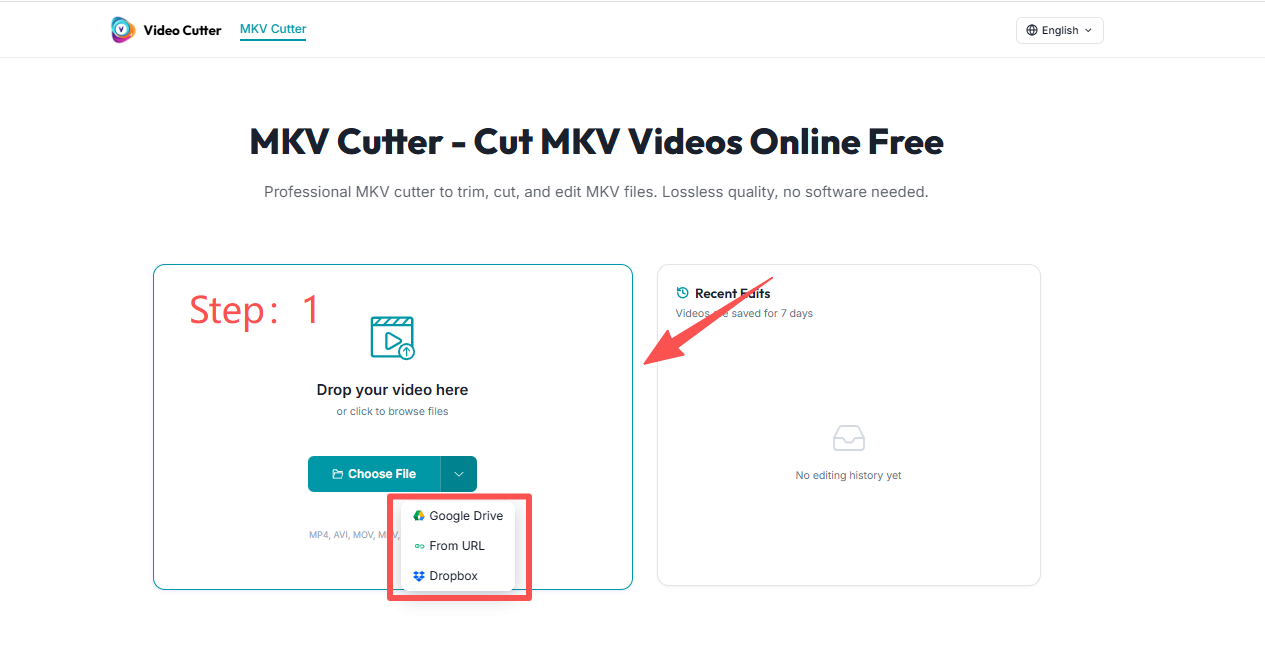
Step 1: Load Your Video (Instant & Private)
Go to Video Cutter. Click the "Open File" button or drag and drop your video. Notice how it loads instantly? That’s because nothing is being uploaded to a server.
Step 2: Precise Trimming and Cutting
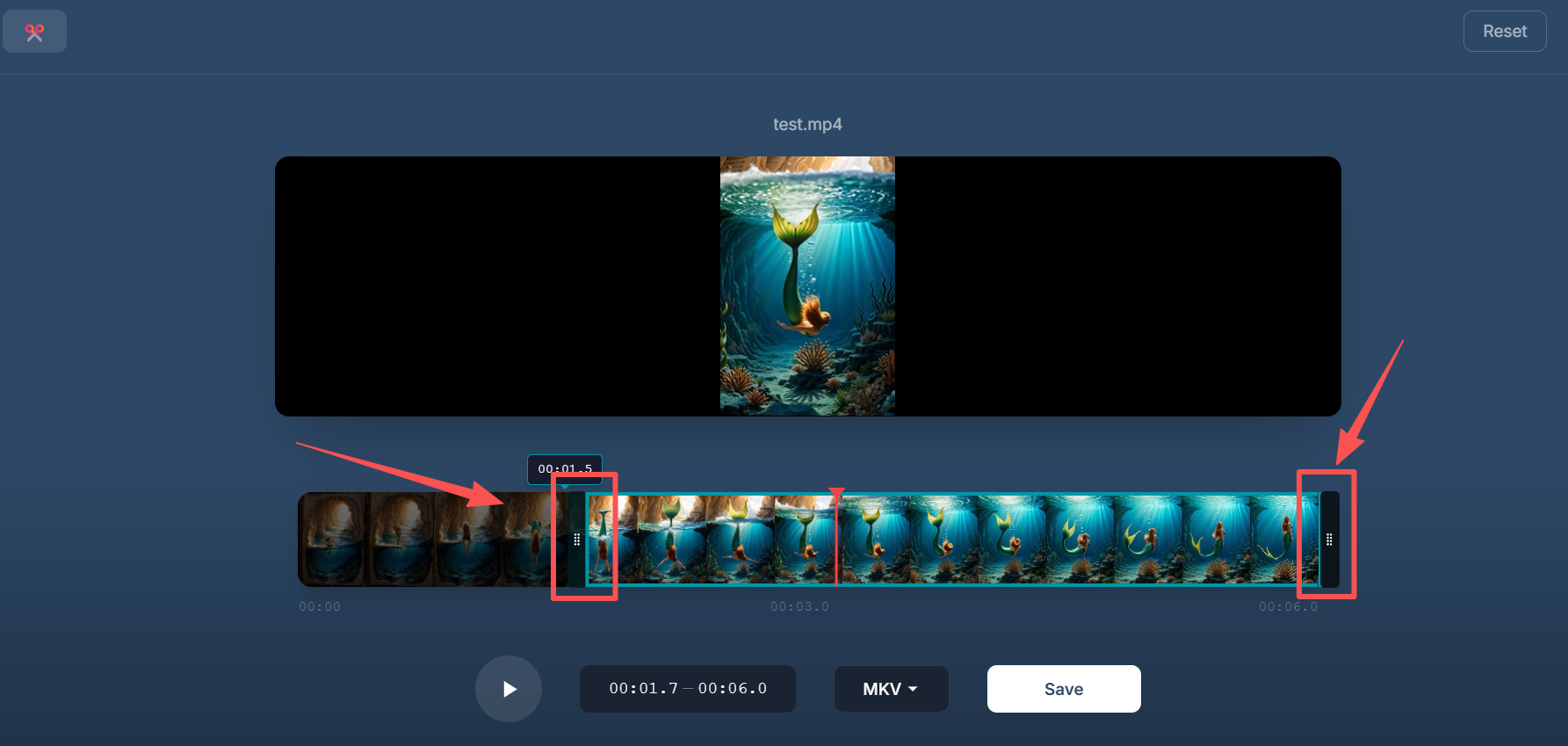
To Trim: Drag the left handle to where you want the video to start. Drag the right handle to where it should end.
To Cut the Middle: Move the playhead to the start of the section you want to remove, usethe split tool, and then repeat at the end of that section to delete the unwanted clip.

Step 3: Live Preview
Click play to watch your edited version. Our local preview ensures there is zero lag, so you can see exactly how your transitions look before you save.
Step 4: Instant Export & Save
Select your desired format (MP4 is recommended for most platforms). Because the processing happens on your own CPU via WASM, the export is incredibly fast. Click Save, and your file is ready.

When you’re happy:
You can choose the format for exporting your video — such as MP4, MOV, AVI, and more.
Then click Save, and the download will be completed.
If you're not sure which one to pick, just go with the default MP4 setting. It's the most widely used format.
Most beginners should leave:
- Resolution unchanged
- Format unchanged
Download the final video to your device.
Done. 🎉
Trim vs. Cut vs. Split: Know Your Tools
To get professional results, you need to use the right technique:
- Trimming: Removing the "edges." Use this to cut out the 5 seconds of you setting up the camera or the awkward ending.
- Cutting: Removing a "chunk" from the middle. This is perfect for deleting a mistake or a long silence in a presentation.
- Splitting: Dividing a long video into smaller independent clips. Great for taking one long vlog and turning it into multiple TikToks or Reels.
Common Real-Life Scenarios for Cutting Videos Online
Here’s how people actually use online video cutters in daily life.
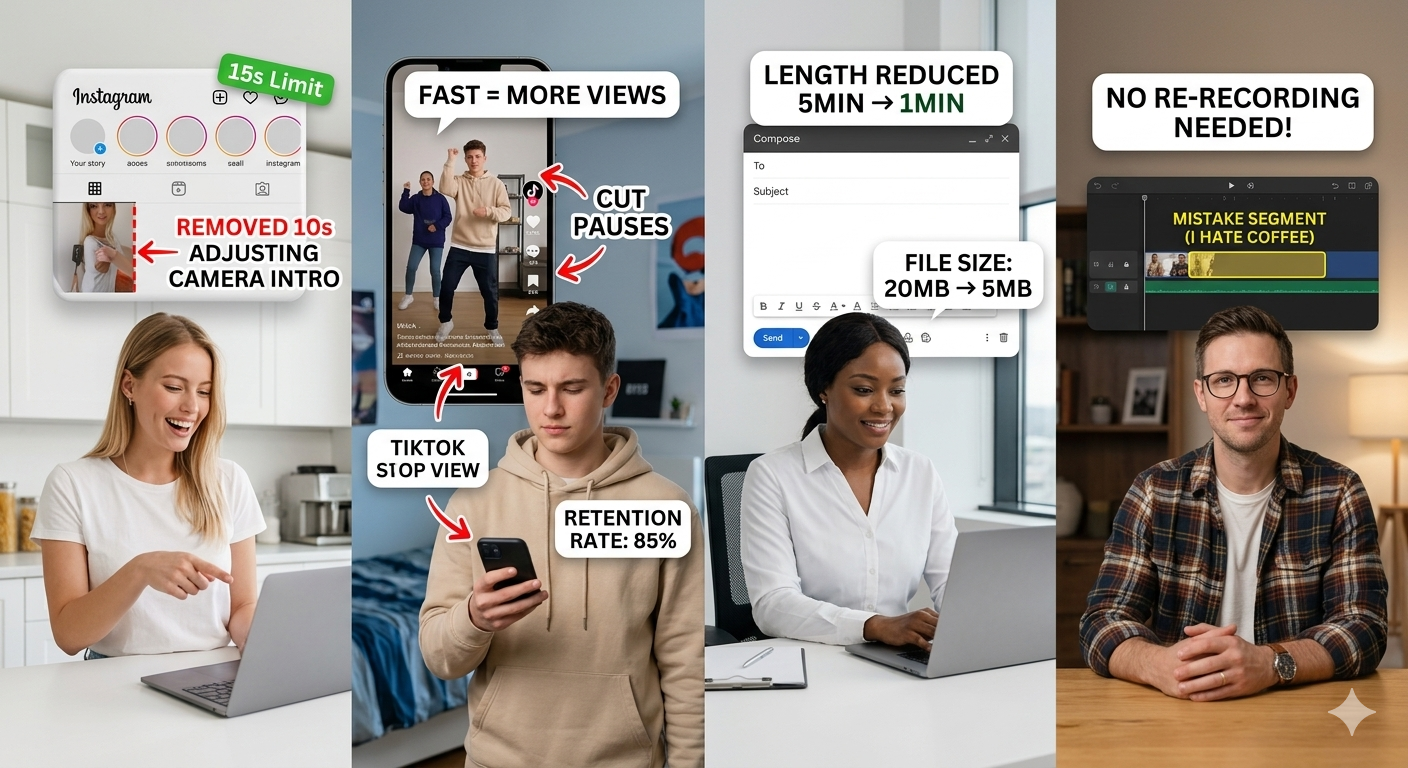
Cutting a Video for Instagram
Instagram has time limits and prefers short, engaging videos.
Use cutting to:
- Remove slow introductions
- Focus on the main moment
- Fit platform length limits
Trimming a Video for TikTok or Reels
Short-form platforms reward fast pacing.
Cutting helps you:
- Remove pauses
- Keep only the most interesting part
- Improve viewer retention
Shortening a Video to Send by Email
Email systems often limit file size.
Cut your video to:
- Reduce length
- Remove unnecessary scenes
- Make sharing easier
Removing Mistakes from the Middle
Recorded yourself saying the wrong thing?
Cut the mistake out instead of re-recording everything.
Frequently Asked Questions (FAQ)
What’s the difference between trimming and cutting a video?
Trimming removes the beginning or end. Cutting removes a section from the middle.
Does trimming delete the original video?
No. Your original file stays unchanged on your device.
Can I cut a video on mobile?
Yes. Our online video cutter can work on mobile browsers, though larger screens are easier.
Does cutting a video reduce quality?
Not if you keep the original settings and export once.
Is an online video cutter free?
Our video cutter tools offer free cutting for basic use. Advanced features may require payment.