
YouTube Cutter: How to Cut YouTube Videos Online in 3 Steps (Free)
For most people, content creation is the easiest side hustle to start — you don't need a studio, a team, or a huge budget. The hard part usually isn't shooting the video. It's editing it. Most editing software comes with a real learning curve, and that one step is enough to make a lot of people give up before they even start.
But editing doesn't have to mean mastering a timeline full of tracks and effects. Most of the time it's just cutting out the part you don't need and keeping the good stuff — or, if the shot came out messy with a cluttered background, just cropping it down to size. That's it. You don't need a complex editor to become a creator. You just need to start with the simplest tool that gets the job done, and starting is the part that actually matters.
You just need to open a browser-based tool, upload the file, trim it, done. This guide walks through how VideoCutter.io handles that, and why a plain YouTube cutter is usually enough for edits like these.
What Is a YouTube Cutter?
A YouTube cutter shortens a video by letting you pick where it starts and where it ends. Some people call it trimming, some call it clipping — it's the same idea either way. You keep the part you want, drop the rest, export.
Broadly, you've got two options:
- Desktop software — DaVinci Resolve, Premiere Pro, iMovie. Powerful, but you're installing something and learning a timeline just to make a five-second cut.
- Online YouTube cutters that run in the browser. Upload, drag two handles, download.
For a quick edit, the browser tool usually wins. It works the same whether you're on Windows, macOS, Linux, or a Chromebook — no install, no compatibility issues, and most don't even ask you to sign up.
Why Use an Online YouTube Cutter?
Mostly, it's just faster. If the file's already on your computer, uploading it to a browser tool and downloading the trimmed version beats opening a desktop editor and waiting for it to load.
But speed isn't the only reason people reach for one:
- Nothing to install — it runs in a browser tab, no updates to wait on.
- Works anywhere — laptop, desktop, tablet, same tool every time.
- No watermark — a decent tool like VideoCutter.io won't stamp its logo on your export.
- No account needed — you're not handing over an email just to trim a clip.
- Handles big files — up to 2GB, including 4K footage, so it's not just for short phone clips.
- Nothing extra to figure out — upload, trim, export, and that's genuinely the whole interface.
If you're a creator, a teacher, a marketer, or a student who just needs a clean cut without burning half an hour on it, this is the level of tool that actually fits the job.
How to Cut a YouTube Video Online in 3 Steps
The VideoCutter.io YouTube cutter doesn't overcomplicate this. Once you've got your video file ready, the whole thing takes a few minutes.
Step 1: Upload Your Video
Open VideoCutter.io page ,You can see that our entire page is free of flashy ads and buttons; you only need to drag and drop your files to get started. You can see that we support MP4, AVI, MOV, MKV and WebM formats, so you don't have to worry about format conversion issues. Besides, we allow a maximum upload size of 2GB, and you can easily edit large files up to one hour long.
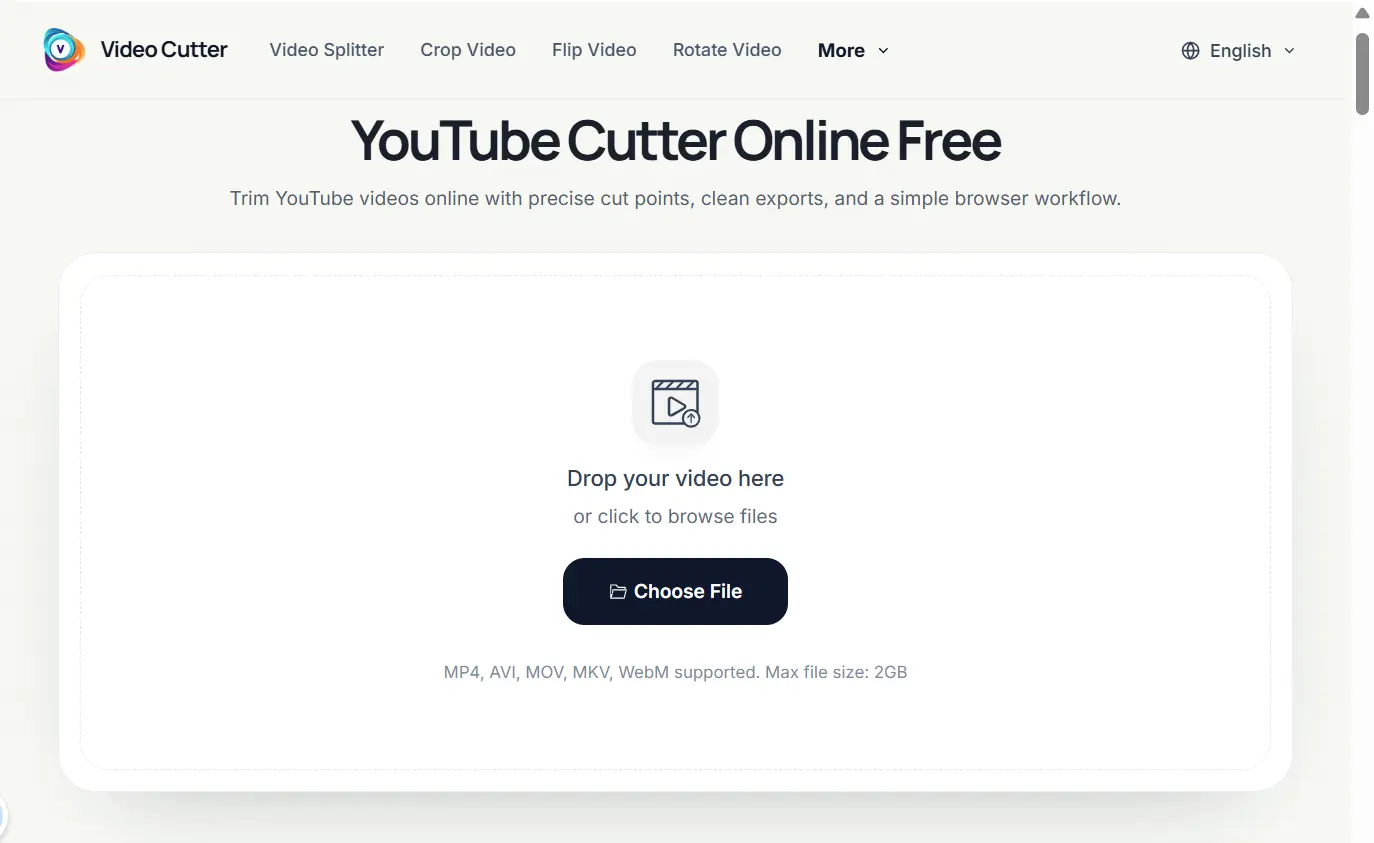
Once it's uploaded, the video shows up in the editor with the full timeline, so you can preview it before touching anything.
Step 2: Set Start and End Points
Operating our website is extremely user-friendly; beginners can understand it at a glance, and you only need to Drag the trim handles on the timeline — left handle marks where the clip starts, right handle marks where it ends. Whatever falls between them is what gets exported.
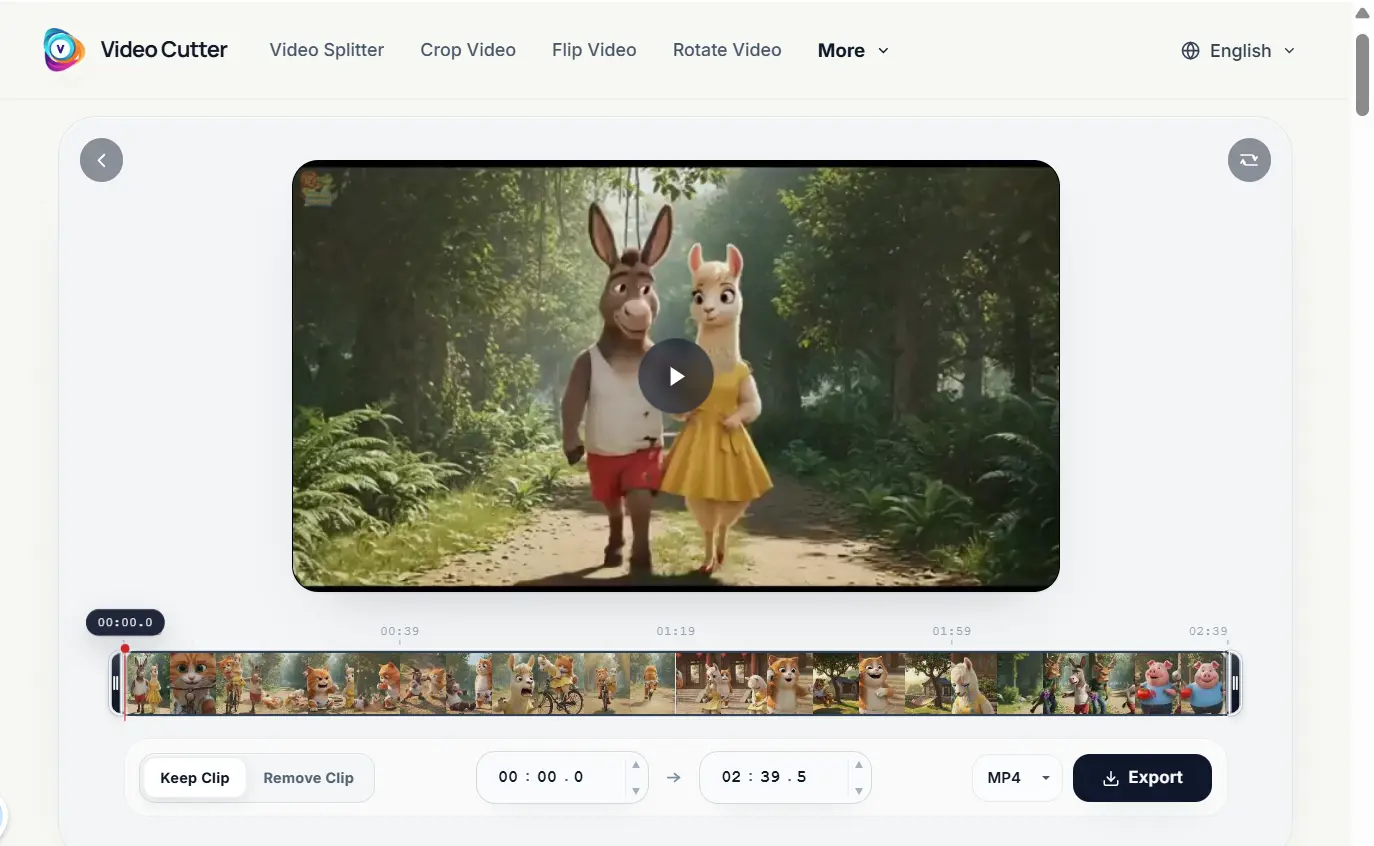
If the tool supports frame-level precision, you can nail the cut down further with a timestamp field or the arrow keys. Keep an eye on the preview while you do this — it's easy to shave off the first word of a sentence or clip the tail end of a scene without noticing.
Step 3: Export and Download
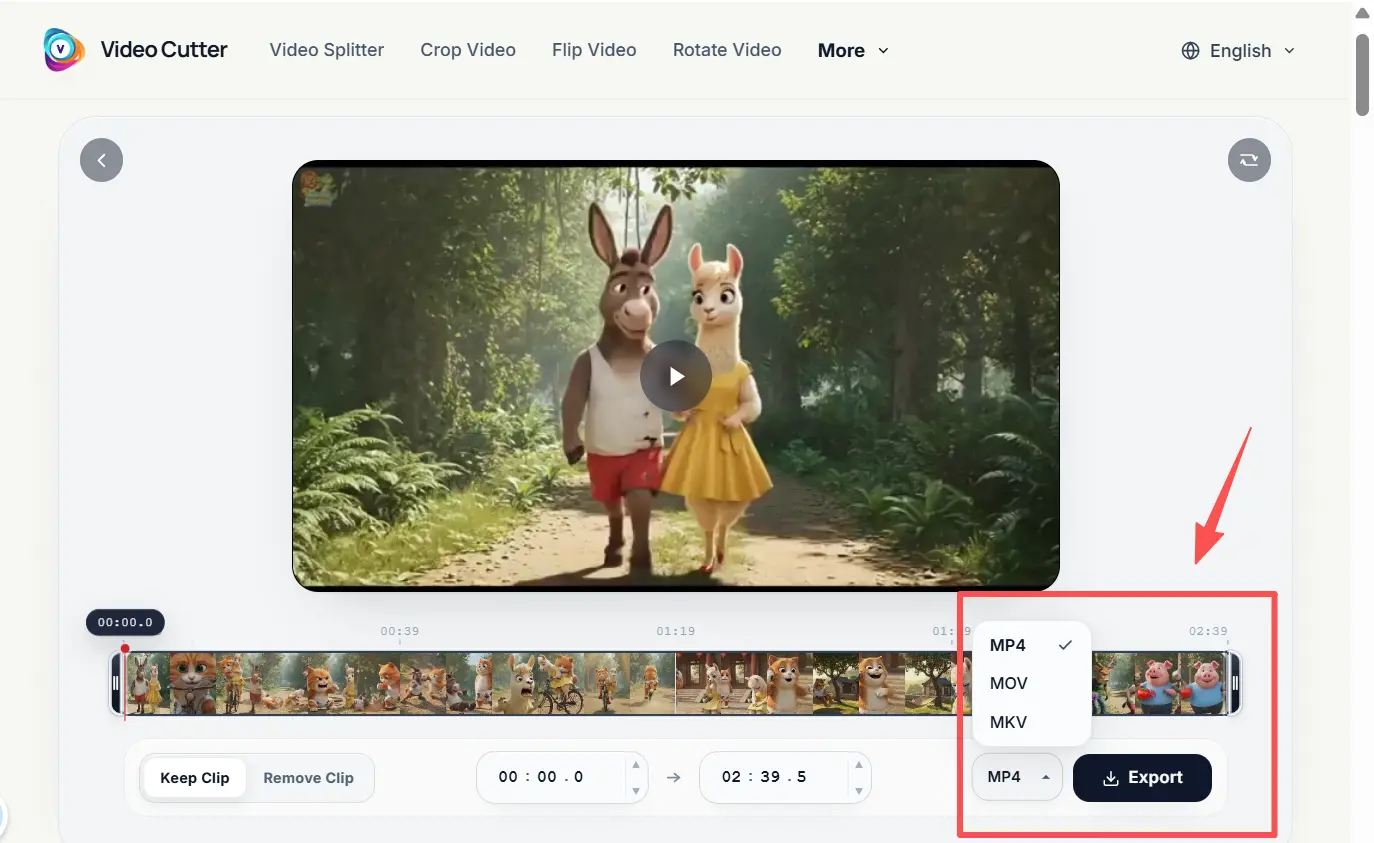
Once the selection looks right, hit export. The tool processes the trimmed clip, and once it's ready, you download it. That's it — upload, mark, export, no render queue, no tangled timeline, no premium paywall blocking the download button.
Key Features of a Reliable YouTube Cutter
Not every online cutter is built to the same standard. A few things worth checking before you commit to one:
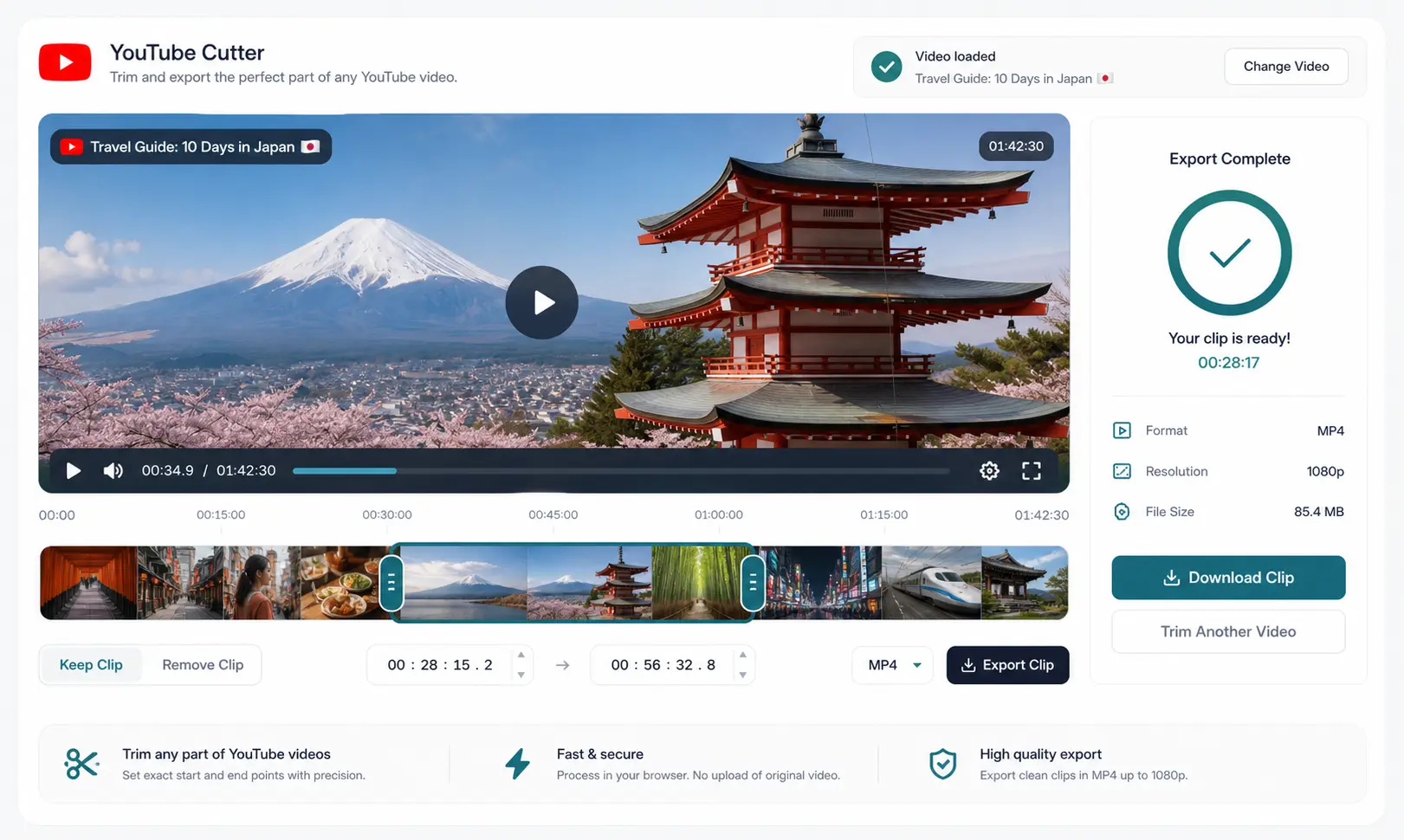
- Precise trimming — handles or timestamp fields that let you land on an exact in and out point, not just a rough drag.
- Fast processing — even an HD file shouldn't take forever to export.
- No watermark — some free tools slap a logo on your video; a good one doesn't.
- Sensible privacy handling — no unnecessary permissions, no holding onto your file longer than it needs to.
- Decent format support — MP4 is the baseline, but MOV and AVI support matters too.
- Room for real footage — support for 4K and files up to 2GB, not just quick low-res clips.
- No forced signup — the good ones let you start immediately.
VideoCutter.io covers this list for cutting YouTube videos specifically, including the 4K and 2GB headroom most lightweight cutters skip. The whole interface is built around that three-step flow, so there's nothing extra getting in the way.
VideoCutter.io vs. Desktop Video Editors
Desktop editors still earn their place — color correction, multi-layer edits, motion graphics, detailed audio mixing, that's their territory. For a simple cut, though, a desktop program is more than the job calls for.
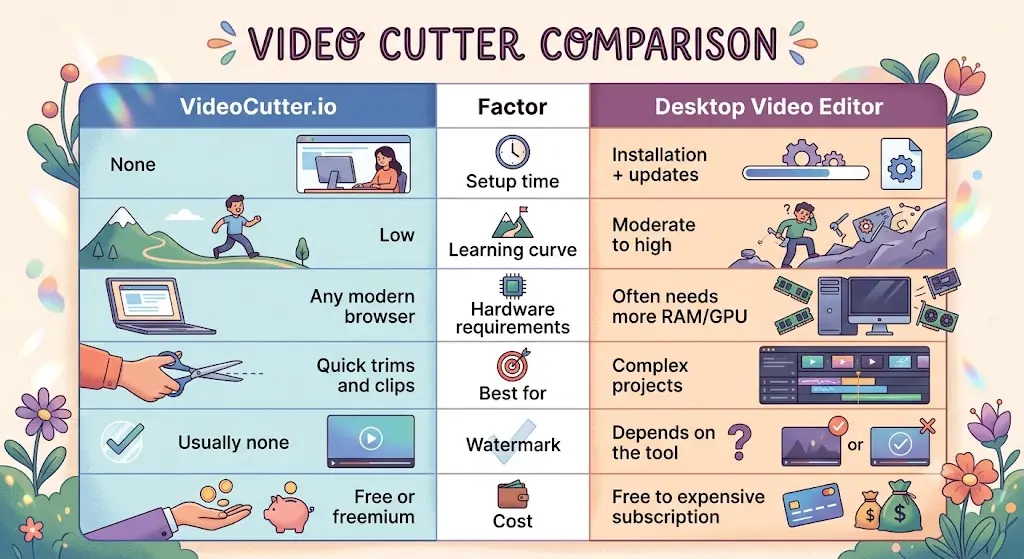
| Factor | VideoCutter.io | Desktop Video Editor |
|---|---|---|
| Setup time | None | Installation + updates |
| Learning curve | Low | Moderate to high |
| Hardware requirements | Any modern browser | Often needs more RAM/GPU |
| Best for | Quick trims and clips | Complex projects |
| Watermark | Usually none | Depends on the tool |
| Cost | Free or freemium | Free to expensive subscription |
If all you need is a clean cut, the online tool is the practical call — it saves time and keeps the process from turning into a project. Most importantly, we have no ads and will not bother you.
Common Use Cases for a YouTube Cutter
A YouTube clip cutter ends up more useful than it sounds on paper. In practice, people reach for it to:
- Make social clips — turn one long YouTube video into short pieces for TikTok, Reels, or Shorts.
- Trim intros and outros — cut the dead air at the start, or an outro that's out of date.
- Build highlight reels — pull the best moments out of something longer.
- Prep educational content — keep just the relevant section for a lesson or study guide.
- Cut out mistakes — a stumble, a cough, a glitch buried in the middle.
- Cut a trailer — build a short preview from a full-length video.
It all comes down to the same move: find the part that matters, drop the rest, export. A plain YouTube cutter does exactly that and stays out of your way while doing it.
Frequently Asked Questions
Is it legal to cut a YouTube video?
Depends what you do with it afterward. Cutting your own video, or one you have permission to edit, is fine. Downloading someone else's content and reusing it without permission is a different story — that can run into copyright issues or YouTube's terms of service. Stick to your own footage or stuff you actually have rights to.
Can I cut a YouTube video without downloading it first?
Generally, yes — you'll need to download the video first, then upload it to the cutter. Some tools claim they can pull straight from a YouTube link, but those usually come with restrictions, ads, or worse output quality.
Does cutting a YouTube video reduce quality?
If the tool re-encodes the file, you might see a small drop. A well-built cutter keeps the export as close to the original as it can — VideoCutter.io doesn't add watermarks or compress harder than it needs to.
What's the best free YouTube cutter?
Depends what you're after, but for fast, no-signup trimming, VideoCutter.io does the job — it's built specifically for this and keeps the process to three steps.
Can I cut a YouTube video on my phone?
Yes — VideoCutter.io runs in a browser, so it works on mobile the same way it does on desktop. Same upload, same trim process.
Final Thoughts
Cutting a YouTube video shouldn't feel like a project. A focused YouTube cutter gives you exactly the controls you need and skips everything a full editor would make you deal with. If you just want to trim, clip, or shorten something quickly, the online three-step route is hard to beat.
Try VideoCutter.io and cut your next video in minutes.